Adding, Filtering and Rendering
Roasts can be added manually using the plus button. However, roasts are added more conveniently using the Artisan roast logger automatically during roasting. For details see under Artisan Integration.

A roast is given by a name, date, the bean or blend used, and the batch size. More details, like the resulting yield (weight of roasted beans), the batch number, the machine you roasted with, as well as the color, moisture and density of the result, can be specified too. The batch of the beans roasted is automatically deduced from the specified store.

Watch out! Using Artisan for submitting roasts to the platform may add additional attributes like the ambient conditions, the charge and drop temperatures and more. The full profile information, however, is never submitted to the platform and thus never stored online.
On top you find controls to filter the roasts by date range, origins, as well as additional filter arguments. The list of roasts can be sorted by date, label, batch number, or machine using the button elements in the row below the filters.
Roasts based solely on organic beans are tagged with a green leaf. The leaf icon on top allows to filter all such organic roasts, or alternatively all non-organic roasts.
You can configure the way weights are rendered in the list of roasts by a click on the #.### field on the left top of the list. You can have units automatically adjusted between kg/g base on the amount, have trailing zeros removed and decide on the number of decimals to be rendered.

Acaia Integration
To simplify the entry of batch weights you can connect to your Acaia scale via Bluetooth directly from your Web browser. This works with all modern browsers supporting the Web Bluetooth API, like Chrome with the notable exception of Apple’s Safari that does not support this technology. Note that similar Acaia support is built into the Artisan roasting app as well.

Artisan Links
To quickly open the Artisan profile associated with a roast entry, just click the blue Artisan icon under Batch. A click to the black Artisan icon opens the profile directly as background template.

ROEST Import
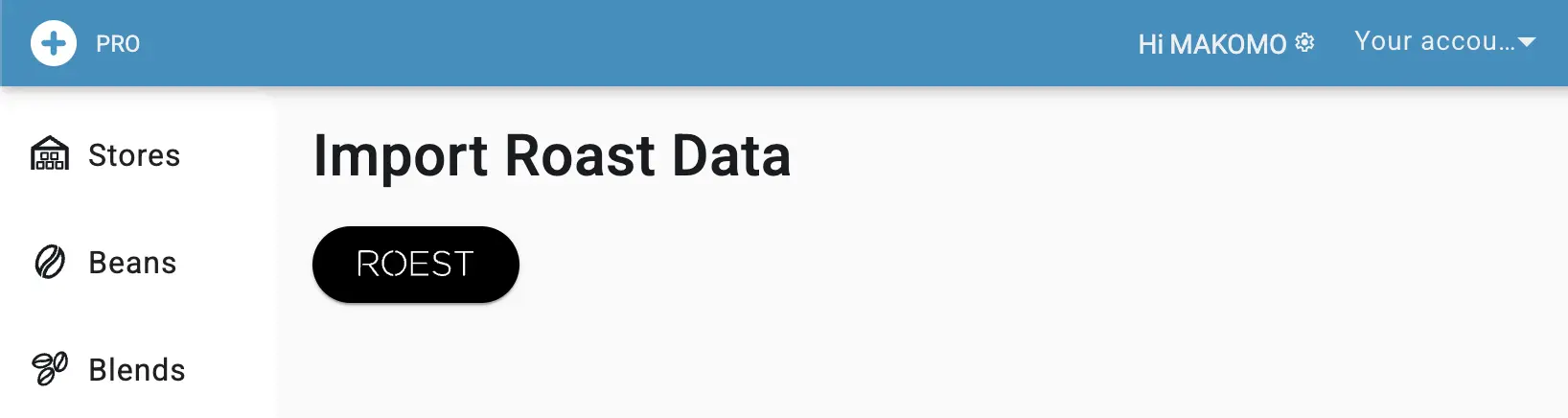
If you have a ROEST machine and are using the ROEST connect software, you can easily import your roasts recorded there: https://artisan.plus/en/roest/beans
Note that it is easier - though not necessary - to first import the relevant beans using ROEST Beans Import.
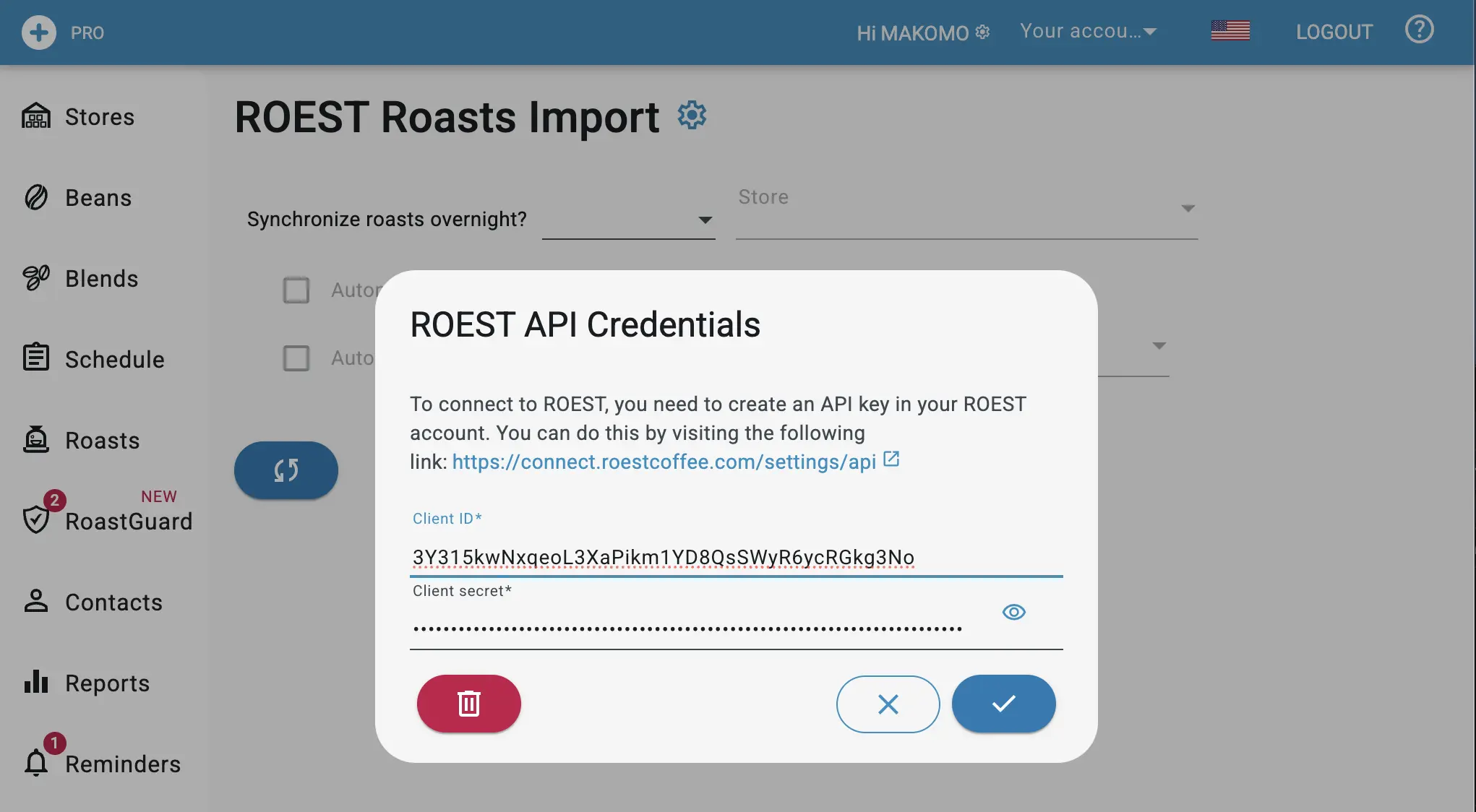
You will first be asked to provide credentials. For that, create an API key in the ROEST software by following this link: https://connect.roestcoffee.com/settings/api
Then, you can choose a date since which roasts will be pulled from ROEST. Nothing will be done yet - you can select the roasts to import in the next step.
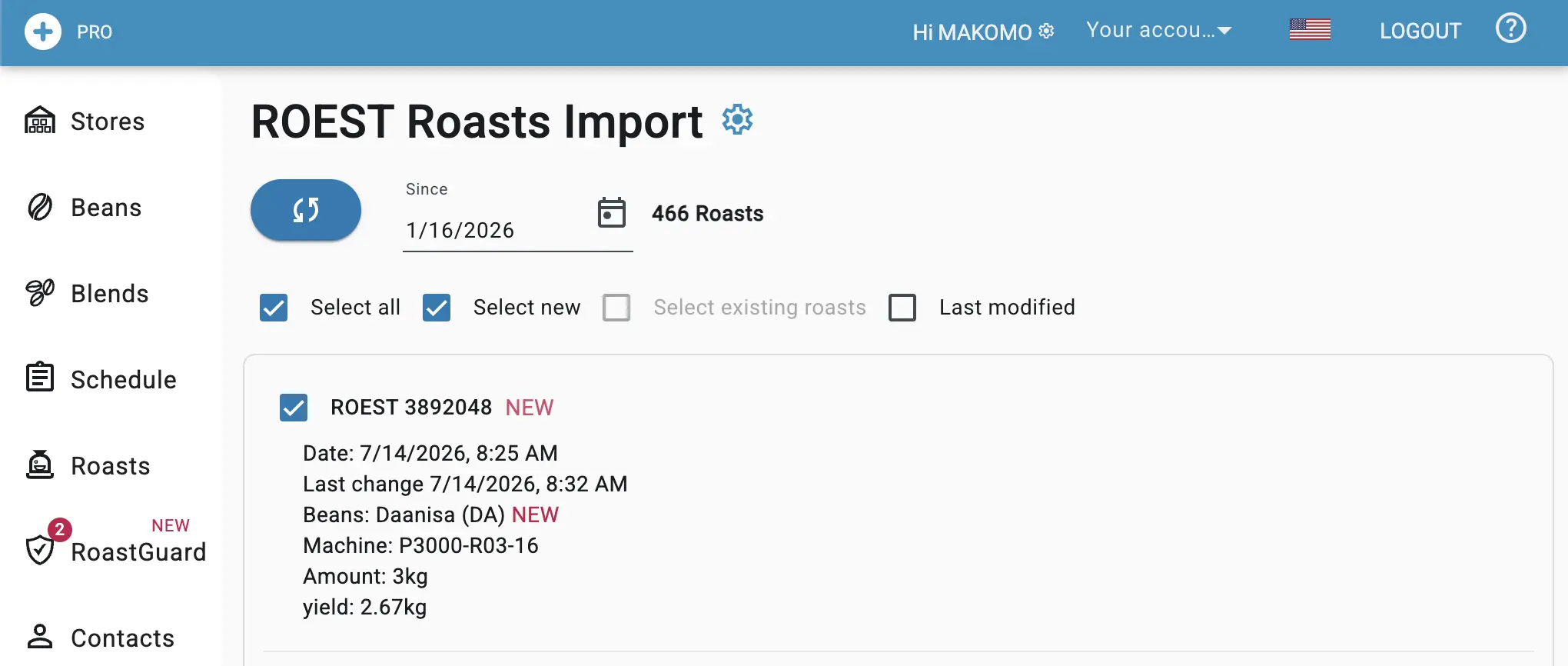
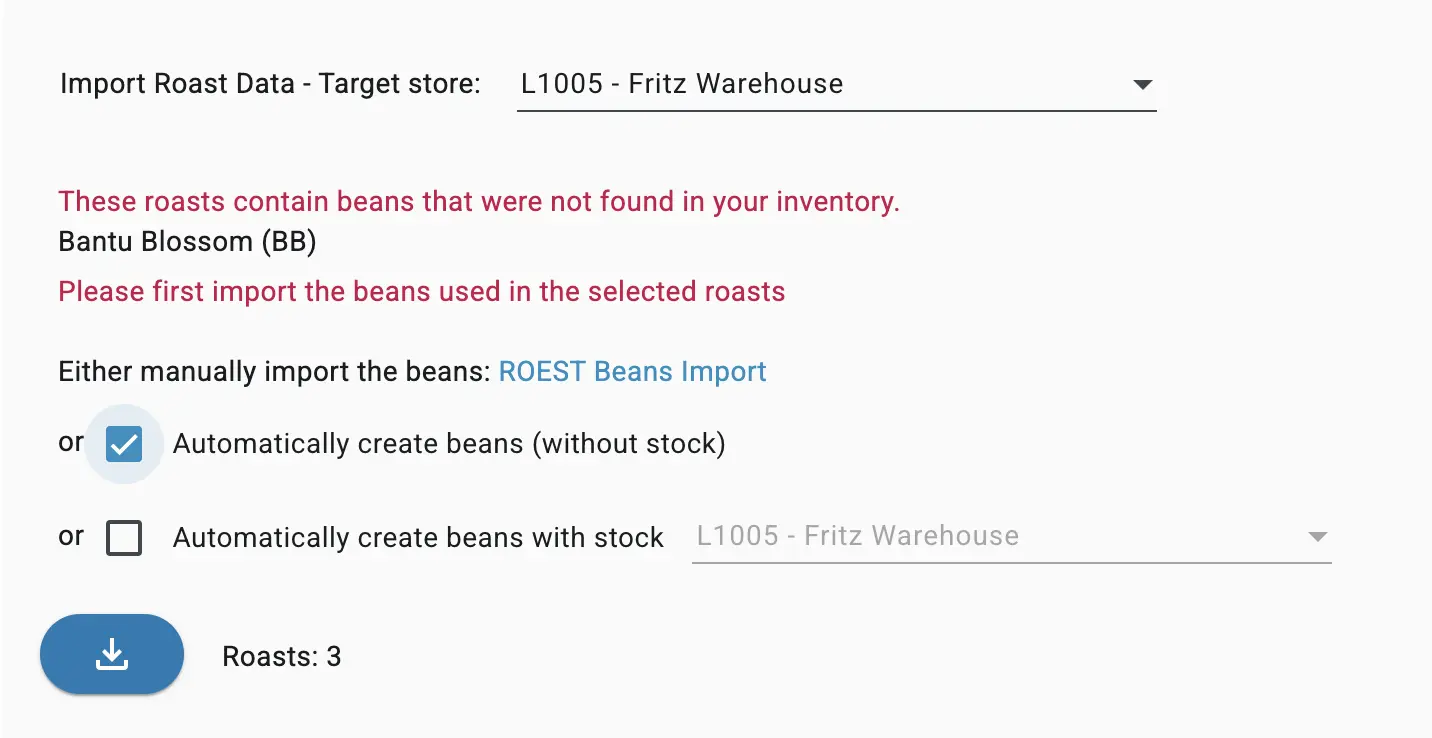
After you select a target warehouse, you are ready to import the roasts.
If there are any beans referenced that you do not yet have in your inventory, you have two options:
- go to the beans import page and manually import them
- or have the system automatically create the beans for you
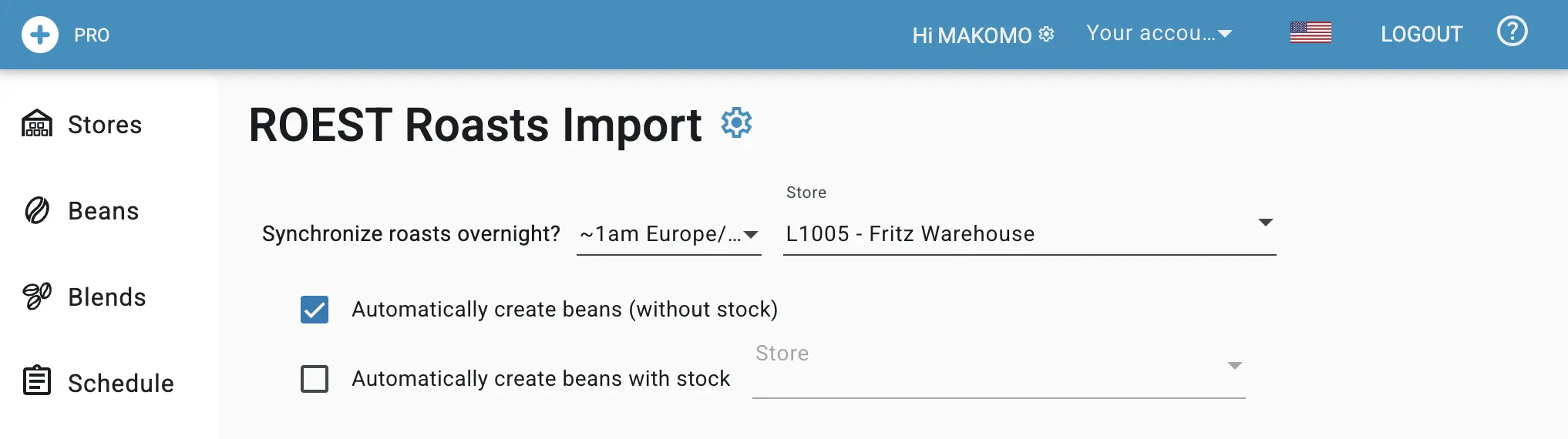
In the latter case, you can choose to automatically create a purchase to mimick the current stock value in ROEST (create beans with stock) or not (without stock).
You can configure an automated sync every night.